
System Upgrade Guide
Opening the system information page
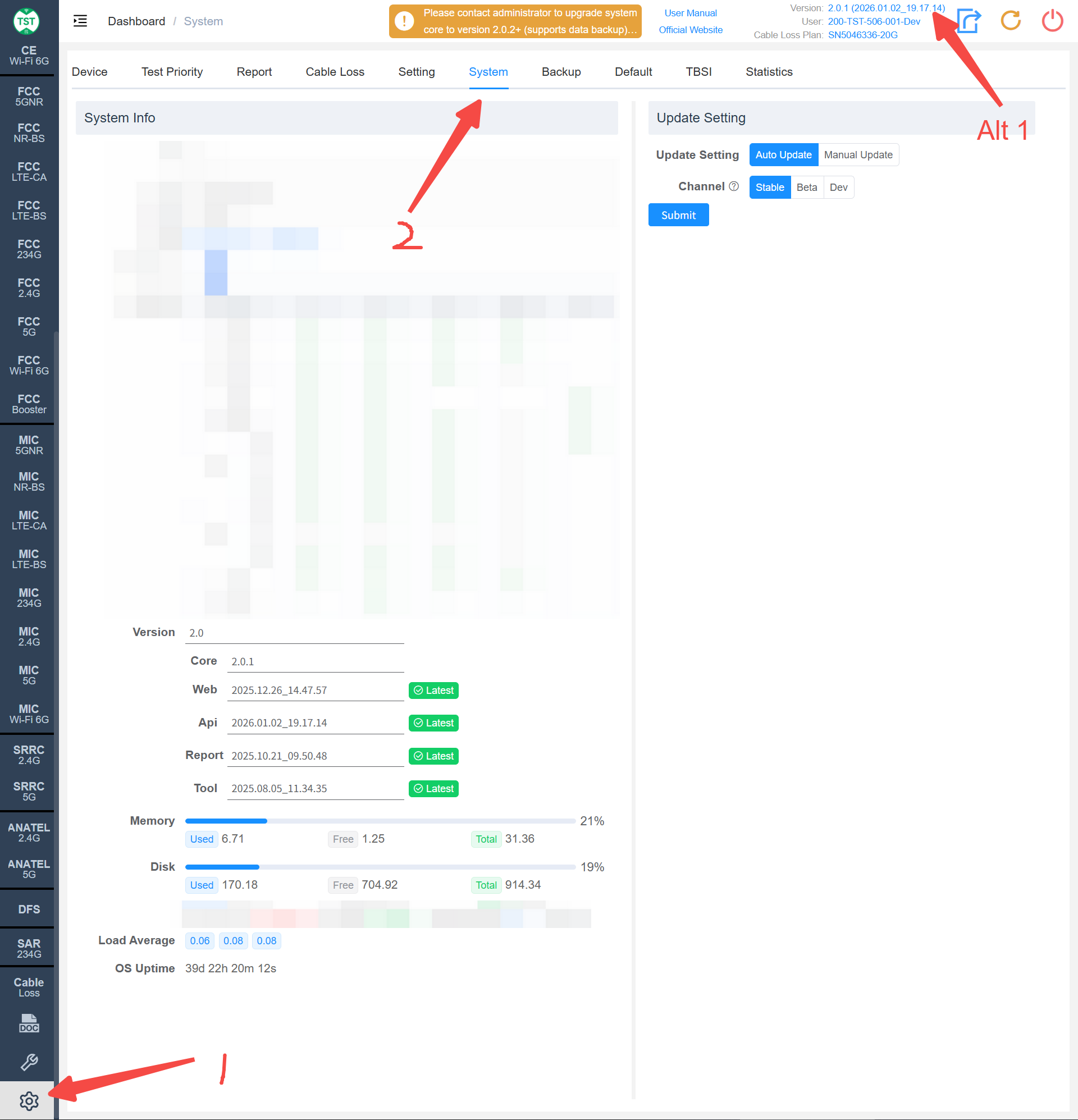
Method 1:
- Click the System icon at the bottom left of the system.
- Select the System tab at the top.
Method 2:
Click the link at the Version text in the top right corner to jump directly.
Auto Update
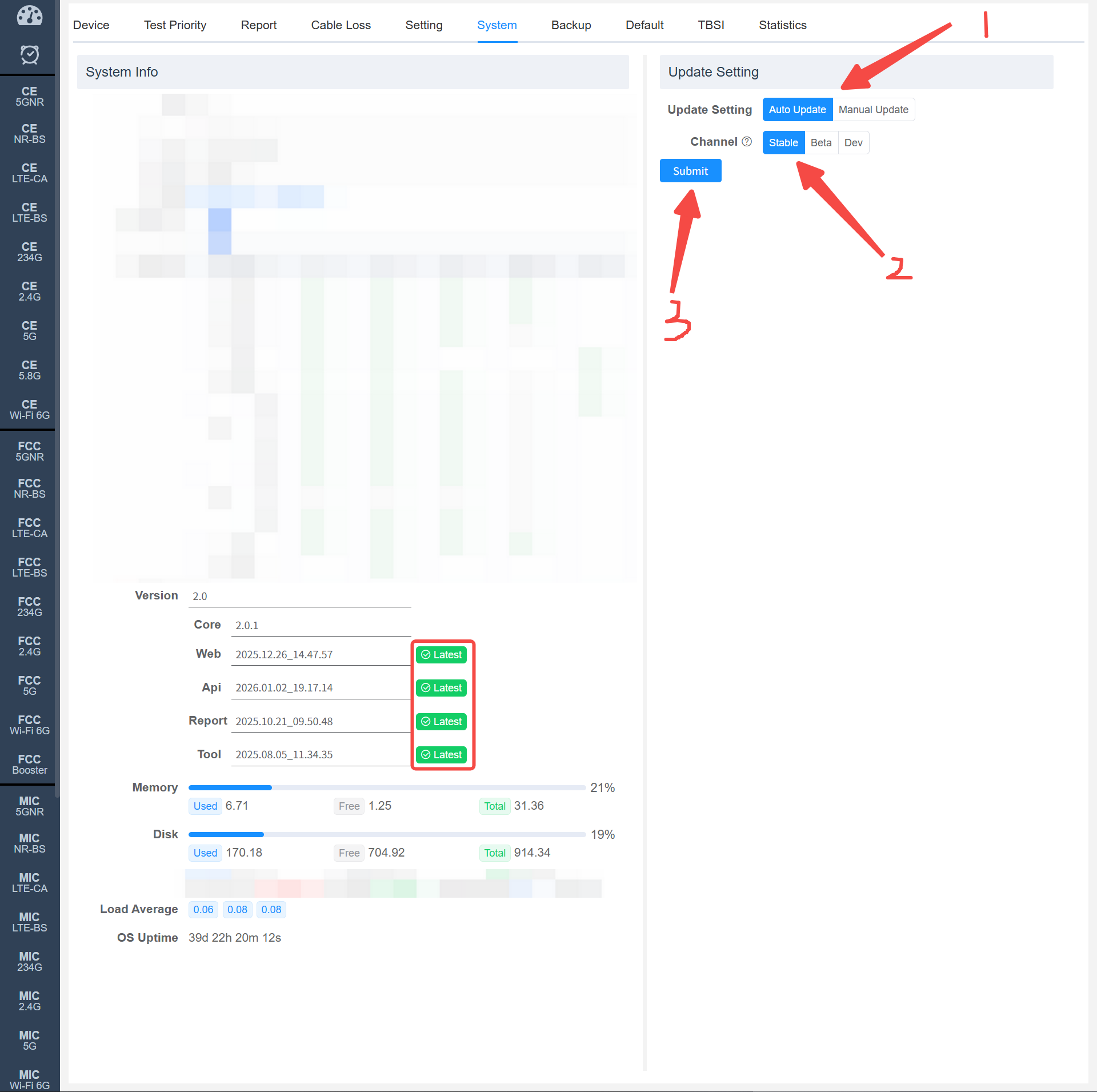
- Make sure the WAN port of the router shipped with the test system has proper internet access.
- Configure the Update Setting as shown below.
- Once configured, the system will automatically update to the latest version when it detects that a new version has been released.
Manual Update
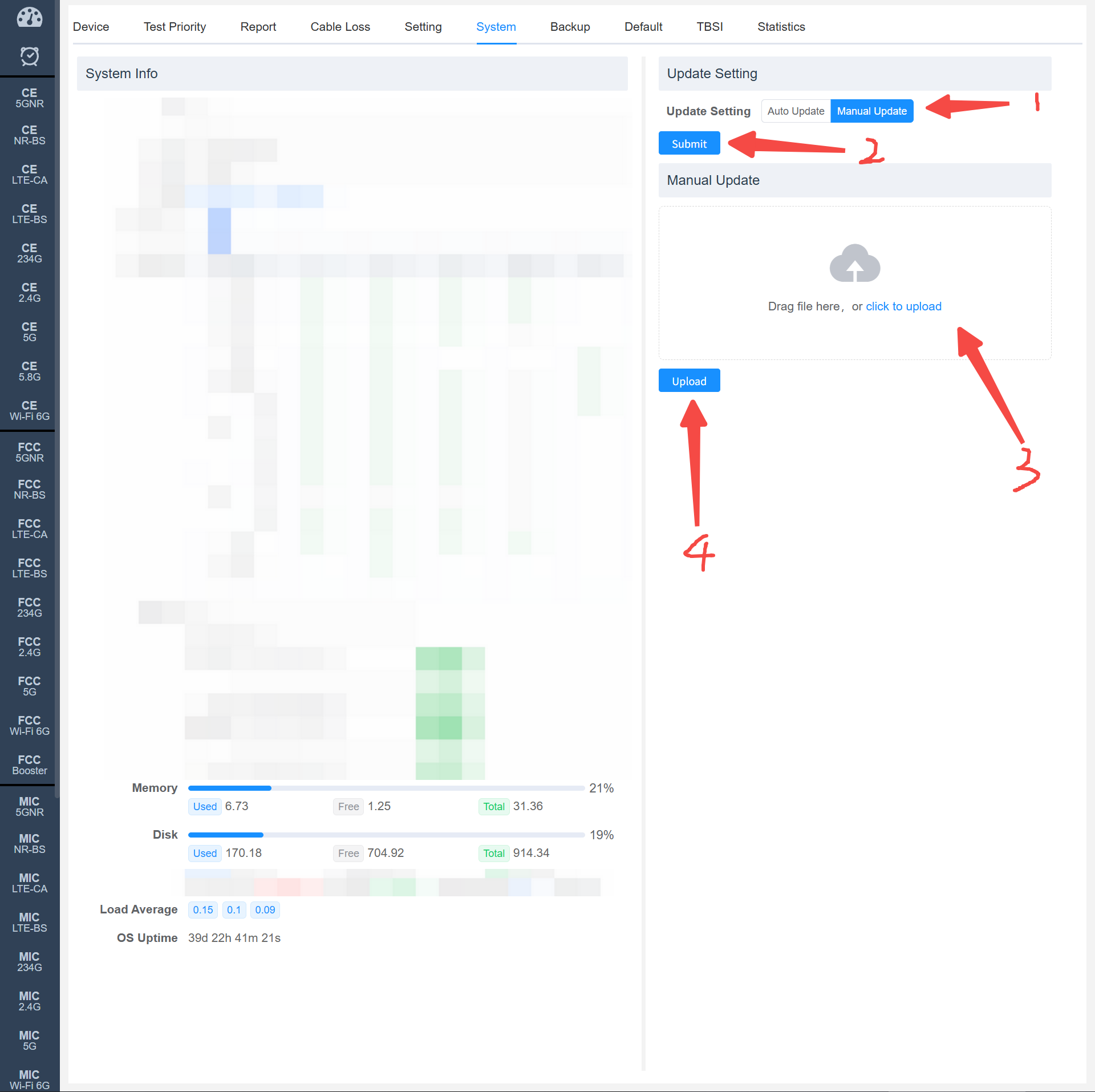
If it is inconvenient for the laboratory to connect the test system to the external network, the system also supports a manual offline update. The steps are as follows:
- Set the system to Manual Update as shown by steps 1 and 2 in the figure below.
- Upload the received .zip upgrade package (drag and drop directly, or click the box to upload) into the window shown as step 3 below.
- Click the Upload button, and the system will perform the upgrade in the background.
- After waiting about 20 seconds, refresh the page and check the Api version on the right to confirm whether the upgrade was successful.
TIP
The received .zip upgrade package does not need to be extracted, and do not manually change the file name of the package.
WARNING
The system cannot be upgraded while a test is in progress. So if you want to upgrade the system, please first confirm on the dashboard that the system has stopped testing.